GMCP triggers
Posted by Kyle Hankinson June 16th, 2026
GMCP triggers
GMCP (Generic MUD Communication Protocol) lets a MUD send your client structured data out of band: your health, the current room, your inventory, and more. Instead of scraping that information out of the text on screen with fragile regular expressions, you can react to the data directly and reliably.
This post covers how to fire a trigger when a GMCP value changes, and how to read the data with getGMCP.
Enabling GMCP
GMCP is enabled per connection and is on by default. You can toggle it in the connection editor. Two console commands help while you work:
#gmcp
Prints every GMCP value the MUD has sent so far, as formatted JSON. This is the quickest way to discover what your MUD exposes and the exact key names to match against.
#enableGMCP
Re-negotiates GMCP with the server if it was turned off.
How GMCP data is keyed
The client flattens each GMCP package into dotted paths. If the MUD sends:
Char.Vitals { "hp": 100, "maxhp": 120, "mana": 50 }the client stores:
Char.Vitals.hp    = 100
Char.Vitals.maxhp = 120
Char.Vitals.mana  = 50
Nested objects keep extending the path, so Room.Info { "name": "Town Square", "exits": { "north": "101" } } becomes Room.Info.name and Room.Info.exits.north.
Creating a GMCP trigger
In the trigger editor, set the match type to "variable updated (including GMCP)". The trigger's pattern is then a GMCP path, not a regular expression, and the trigger fires whenever the value at that path changes.
For example, a trigger with the pattern:
Char.Vitals.hpfires every time your health changes. To watch several paths with a single trigger, separate them with a pipe:
Char.Vitals.hp | Char.Vitals.manaMatching is case-insensitive by default.
Reading the value with getGMCP
When a GMCP trigger fires, the path that changed is available as \0, and you read values with getGMCP:
getGMCP('Char.Vitals.hp')returns the single value (for example100).getGMCP('Char.Vitals')returns an object with everything under that branch:{ hp: 100, maxhp: 120, mana: 50 }.
Example: low-health warning
Match type variable updated (including GMCP), pattern Char.Vitals.hp:
var hp  = getGMCP('Char.Vitals.hp');
var max = getGMCP('Char.Vitals.maxhp');

// Show current health in the app icon badge.
badge(hp + '/' + max);

if (max && hp / max < 0.25) {
    log('Warning: health is low (' + hp + '/' + max + ')');
    beep();
}
Example: show the current room in the status bar
Match type variable updated (including GMCP), pattern Room.Info.name:
status('Room: ' + getGMCP('Room.Info.name'));Tips
- Run
#gmcpfirst to see exactly which packages and key names your MUD sends. Field names (for examplehpversusmaxhp) vary between MUDs. - A GMCP trigger matches on the path, not the value, so the action runs on every change. Use
getGMCPinside the action to read the current value and decide what to do. - Because the data is structured, a GMCP trigger is almost always more reliable than a text trigger for anything the MUD reports over GMCP (health, room, inventory).
- See the Functions post for
getGMCPandsetGMCP, and the Scripts post for sharing helper functions across triggers.
Tags: Scripting
Scripts
Posted by Kyle Hankinson June 16th, 2026
Scripts
The Scripts section is where you keep reusable JavaScript. Instead of copying the same code into every trigger and alias, you write a function once in a script and pull it in wherever you need it.
Every trigger and alias runs in its own JavaScript context, so the functions you define in a script are not available everywhere automatically. You make them available by including the script.
include() and require()
include(scriptName)
The include function loads another script by name and makes everything it defines available to the current trigger, alias, or script. scriptName is the title of the script as it appears in the Scripts list, and is not case sensitive.
require(scriptName)
require is identical to include. Use whichever reads better to you.
A script is only ever included once per run, so it is safe to include the same script from several places, and scripts may include other scripts.
Using a script from a trigger or alias
Create a script named Combat with a couple of helpers:
// Script: Combat
function herb(name) {
    command('get ' + name + ' from pack');
    command('eat ' + name);
}

function quaff(potion) {
    command('quaff ' + potion);
}
To use it from a trigger, include the script at the top of the action, then call the function. (Capture groups from the trigger's pattern are available via textOf(1), textOf(2), and so on. See the Regular expression tips post.)
// Trigger action. Pattern: ^You feel hungry
include('Combat');
herb('bloodroot');
An alias works exactly the same way. Here the first capture group of the alias pattern is passed straight through:
// Alias action. Pattern: ^h (\w+)
include('Combat');
herb(textOf(1));
Because the include runs first, herb is ready to call on the lines that follow.
Reloading after edits
When you change a script, reload so your triggers and aliases pick up the new code:
#reload
Reloads every trigger, alias, and script from disk and reports how many of each were loaded.
Tips
- Group related helpers into one script (for example a
Combatscript and aTravelscript) and include only what each trigger needs. - Includes are resolved when the action is prepared, so there is no measurable cost to including a script you use often.
- See the Functions post for the full list of built-in functions you can call from your scripts, and Console commands for the
#commands.
Tags: Scripting
Regular expression tips
Posted by Kyle Hankinson August 17th, 2022
General
If you need a trigger or alias to match on a regular expression, here are some hints and tips to use.
Regex vailidation
As you type your regex, the main mud display will update to highlight matches.
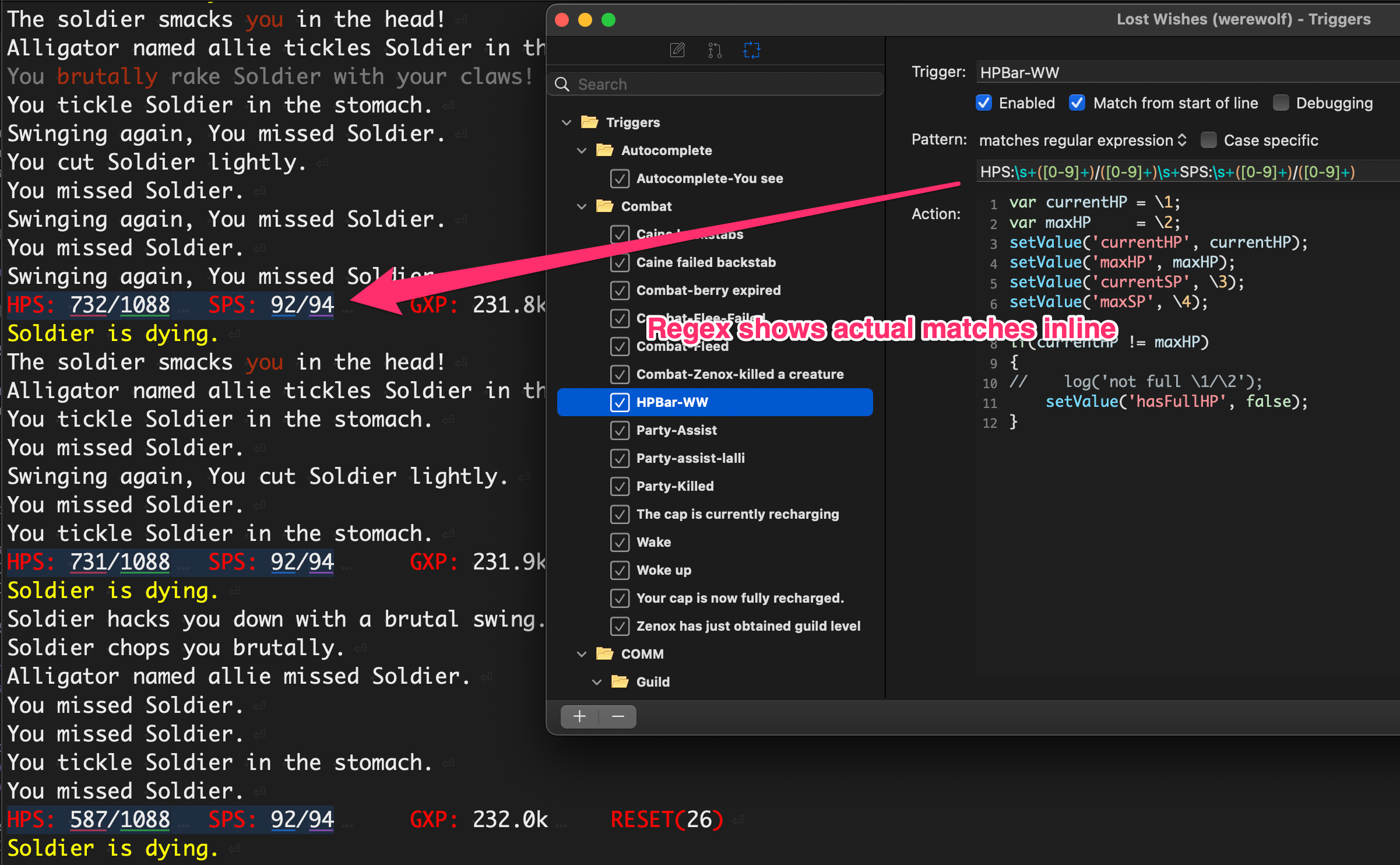
- The background will be highlighted with the full match range. The full match can be accessed in script via
textOf(0). - Each capture group will be underlined and can be used as a paramter in the script via
textOf(1),textOf(2),textOf(3), etc.
Whitespace
For whitespace (space, tab, linebreak) use the \s+ syntax option. While most muds will use spaces, some muds will use tabs is certain instances which may case a basic space match to fail.
Tags: Scripting
Console commands
Posted by Kyle Hankinson August 5th, 2022
Commands
#clearMessages
Clears anything currently in the messages window.
#clearOutput
Removes the main output buffer.
#autocomplete list
Displays a list of current autocomplete entries.
#autocomplete clear
Clears the autocomplete entries.
#vars
Displays a list of current script variables.
#disconnect
Disconnects from the current session. If auto-reconnect is enabled, a countdown will be started and the connection re-attempted.
#close
Disconnects the current connection and closes the window.
#set VARIABLE=VALUE
Sets the specified varaible to the specified value.
#stop
Stops any activly waiting scripts. Scripts may be in a waiting state from either a wait or a commandAndReadFromServer function.
#enable name
Enables a trigger or alias by name (not case sensitive) and saves the change.
#disable name
Disables a trigger or alias by name (not case sensitive) and saves the change.
#status name
Shows whether the named trigger or alias is currently enabled or disabled.
#reload
Reloads all triggers, aliases, and scripts from disk and reports how many of each were loaded. Run this after editing a script so your triggers and aliases pick up the new code.
#setAlias name=command
Creates or updates an alias, mapping name to command, and saves it.
#continue
Resumes any scripts that are paused in a wait.
#gmcp
Prints all current GMCP values as formatted JSON, handy when writing GMCP-aware scripts.
Tags: Scripting
Autocomplete
Posted by Kyle Hankinson August 3rd, 2022
What is autocomplete?
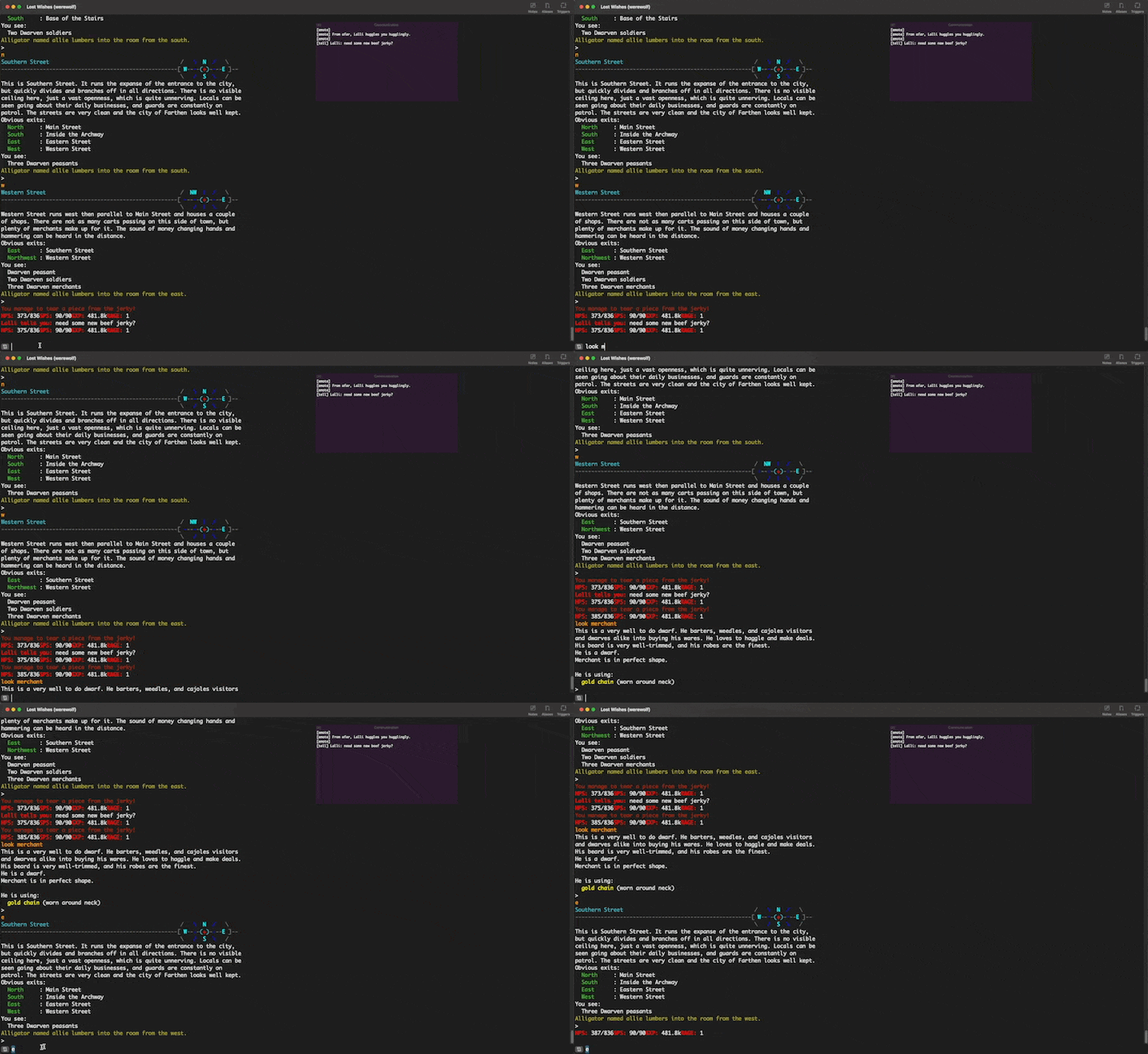
Autocomplete is a way to quickly turn a partial letter into a full word. For example if you were to type the letter look mer and hit tab, it might fill the completion text in as look merchant rather than needing to fully type out merchant.
An example:
How it works
MUD Client allows autocomplete keywords to be added via the scripting engine. An example of this could be an alias to the command look or inventory, or by a trigger that matches You see:.
To have words added to the autocomplete list, you must call the processForAutocomplete method with either an array of words or a string containing one or more words to be added. For example, you could have a login script with either of the following:
processForAutcomplete(['consider', 'kill']);
processForAutcomplete('consider kill');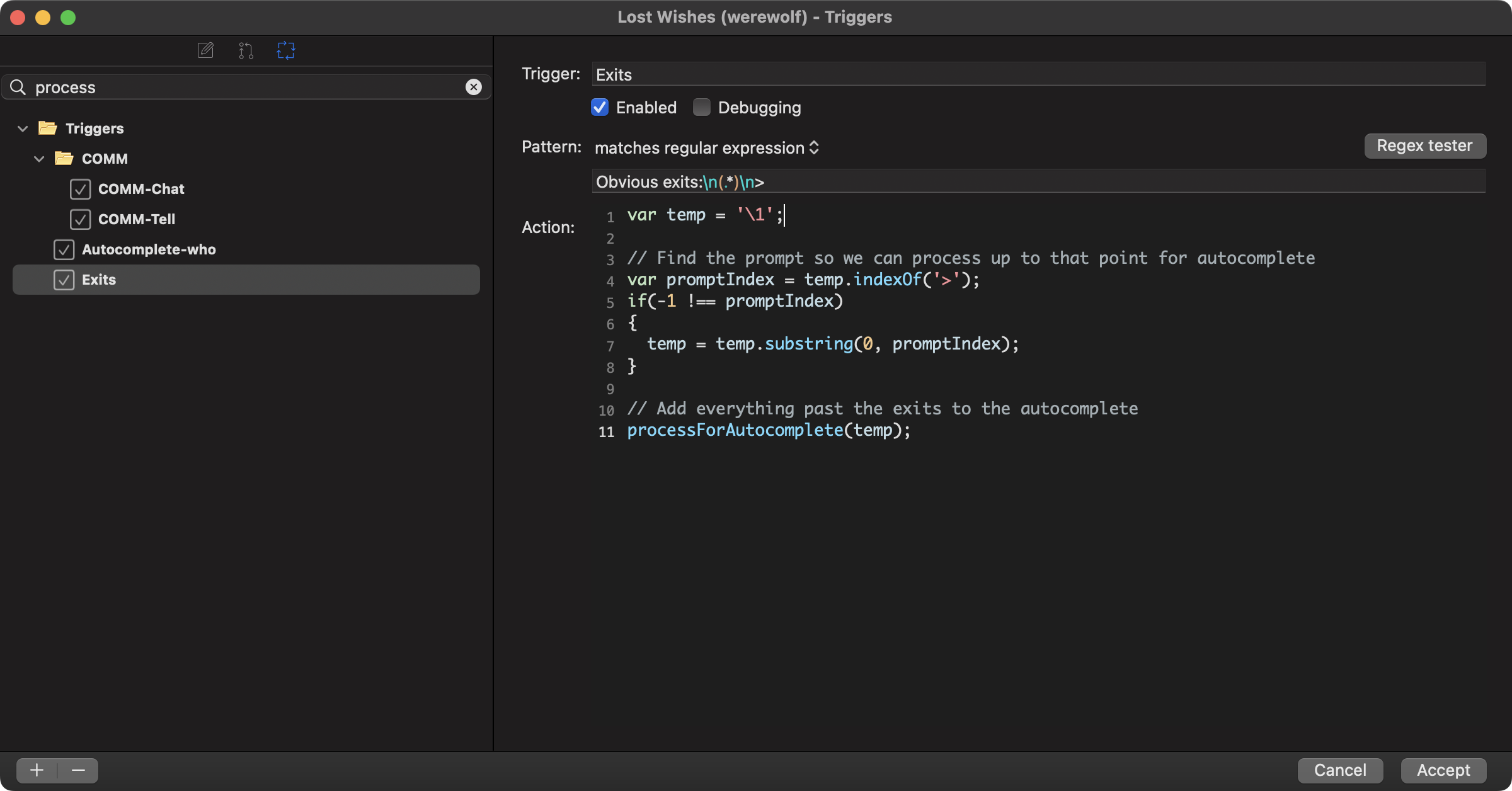 In this example a regular expression is used to match from `You see:` until > (the cursor input for this mud). Everything inbetween is added for autocomplete.